Step 1 — Installing Jenkins
The version of Jenkins included with the default Ubuntu packages is often behind the latest available version from the project itself. In order to take advantage of the latest fixes and features, we’ll use the project-maintained packages to install Jenkins.
First, we’ll add the repository key to the system.
wget -q -O - https://pkg.jenkins.io/debian/jenkins-ci.org.key | sudo apt-key add -
When the key is added, the system will return OK. Next, we’ll append the Debian package repository address to the server’s sources.list:
echo deb https://pkg.jenkins.io/debian-stable binary/ | sudo tee /etc/apt/sources.list.d/jenkins.list
When both of these are in place, we’ll run update so that apt-get will use the new repository:
sudo apt-get update
Finally, we’ll install Jenkins and its dependencies, including Java:
sudo apt-get install jenkins
Now that Jenkins and its dependencies are in place, we’ll start the Jenkins server.
Step 2 — Starting Jenkins
Using systemctl we’ll start Jenkins:
sudo systemctl start jenkins

Note: If this command doesn't work then you can try below command
sudo service jenkins start
Since systemctl doesn’t display output, we’ll use its status command to verify that it started successfully:
sudo systemctl status jenkins


Note: If this command doesn't work then you can try below command
sudo service jenkins status
If everything went well, the beginning of the output should show that the service is active and configured to start at boot:
Now that Jenkins is running, we’ll adjust our firewall rules so that we can reach Jenkins from a web browser to complete the initial set up.
Step 3 — Opening the Firewall
By default, Jenkins runs on port 8080, so we’ll open that port using ufw:
sudo ufw allow 8080
We can see the new rules by checking UFW’s status.
sudo ufw status
We should see that traffic is allowed to port 8080 from anywhere:
OutputStatus: active

To                         Action      From
--                         ------      ----
OpenSSH                    ALLOW       Anywhere
8080                       ALLOW       Anywhere
OpenSSH (v6)               ALLOW       Anywhere (v6)
8080 (v6)                  ALLOW       Anywhere (v6)
Note: If the firewall is inactive, the following commands will make sure that OpenSSH is allowed and then enable it.
sudo ufw allow OpenSSH
sudo ufw enable
Now that Jenkins is installed and the firewall allows us to access it, we can complete the initial setup.
Step 4 — Setting up Jenkins
To set up our installation, we’ll visit Jenkins on its default port, 8080, using the server domain name or IP address: http://ip_address_or_domain_name:8080
We should see “Unlock Jenkins” screen, which displays the location of the initial password
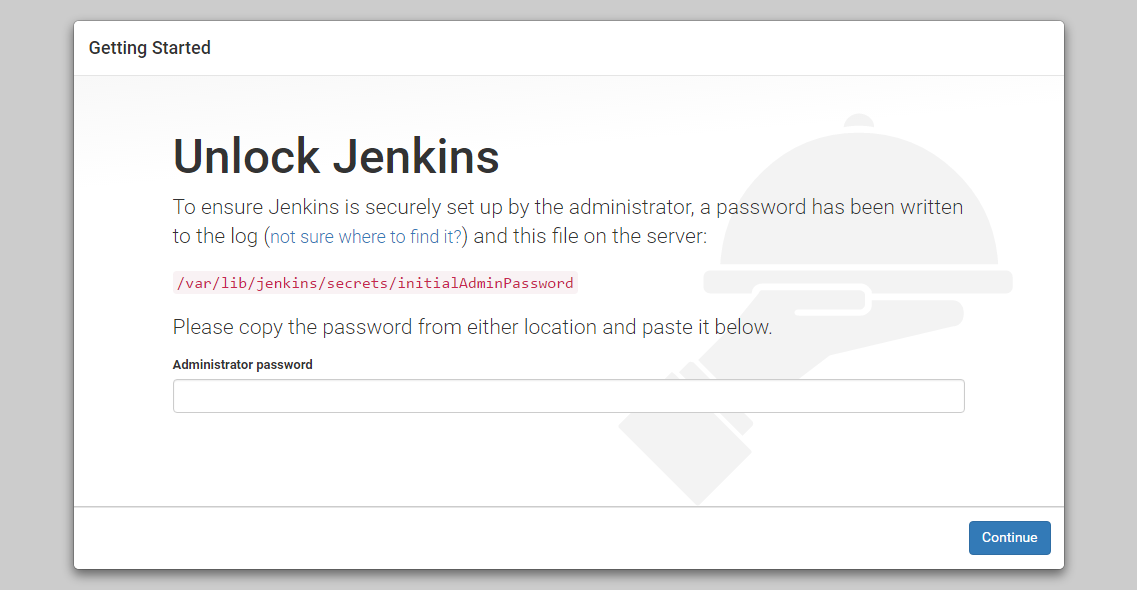
In the terminal window, we’ll use the cat command to display the password:
sudo cat /var/lib/jenkins/secrets/initialAdminPassword
We’ll copy the 32-character alphanumeric password from the terminal and paste it into the “Administrator password” field, then click “Continue”. The next screen presents the option of installing suggested plugins or selecting specific plugins.
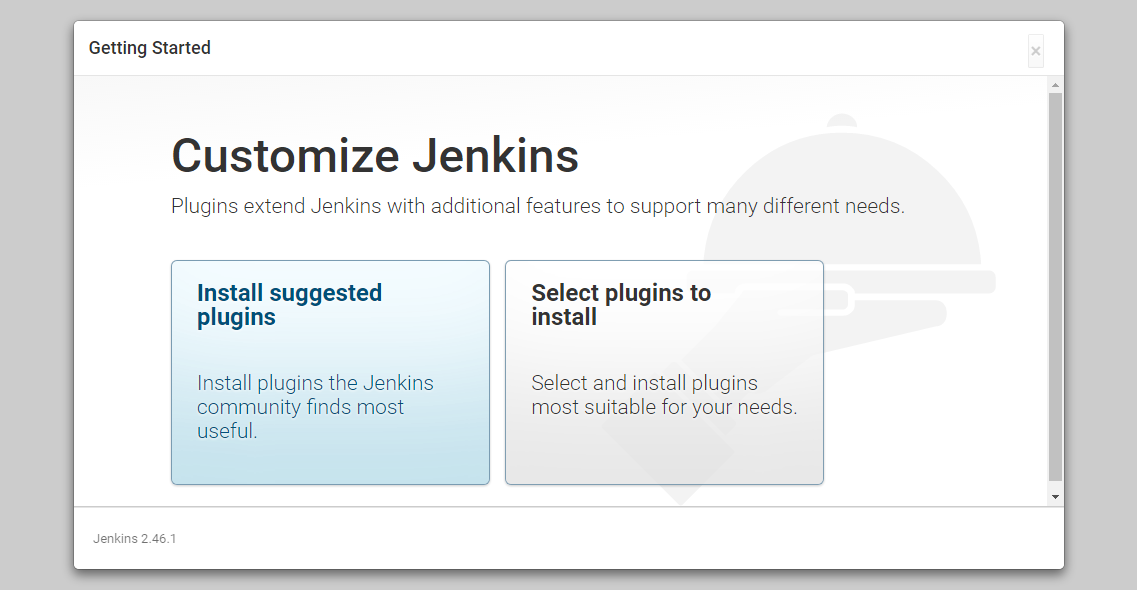
We’ll click the “Install suggested plugins” option, which will immediately begin the installation process:
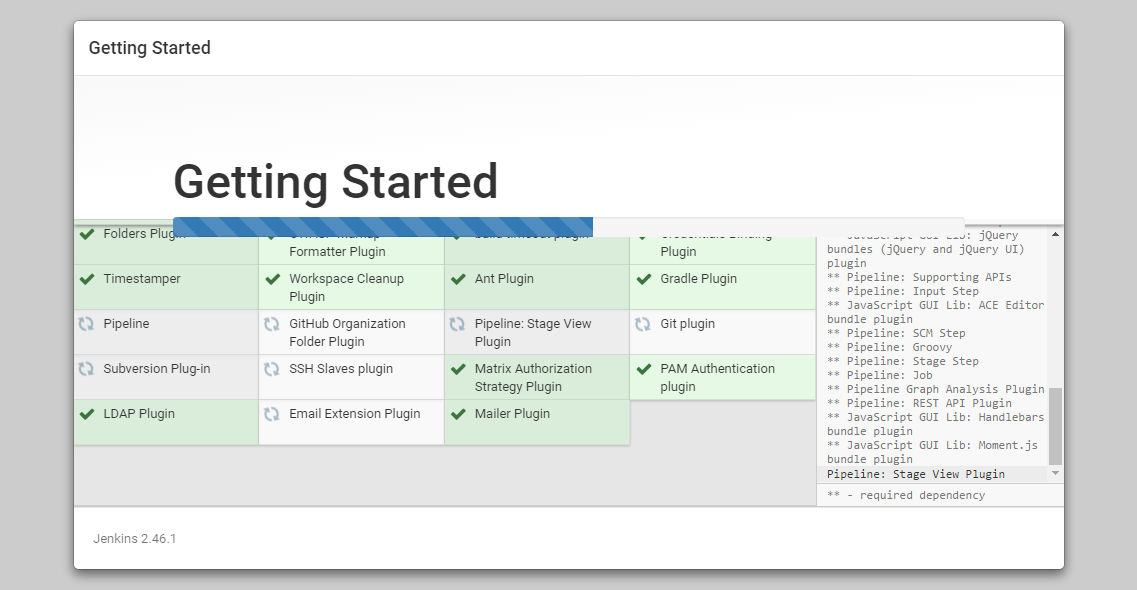
When the installation is complete, we’ll be prompted to set up the first administrative user. It’s possible to skip this step and continue as admin using the initial password we used above, but we’ll take a moment to create the user.
Note: The default Jenkins server is NOT encrypted, so the data submitted with this form is not protected. When you’re ready to use this installation, follow the guide How to Configure Jenkins with SSL using an Nginx Reverse Proxy. This will protect user credentials and information about builds that are transmitted via the Web interface.
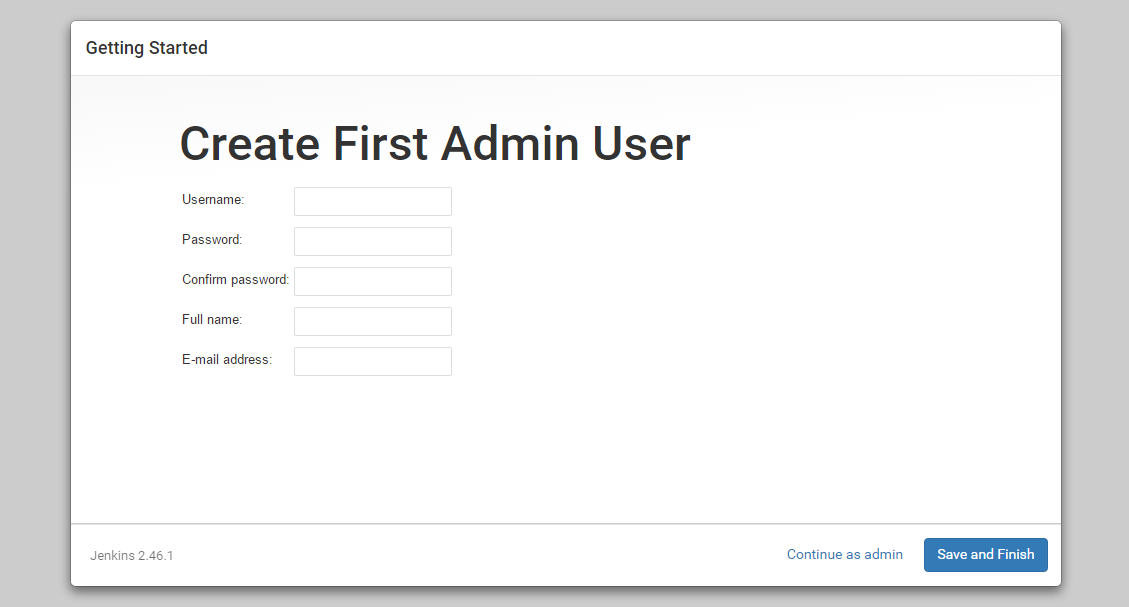
Once the first admin user is in place, you should see a “Jenkins is ready!” confirmation screen.
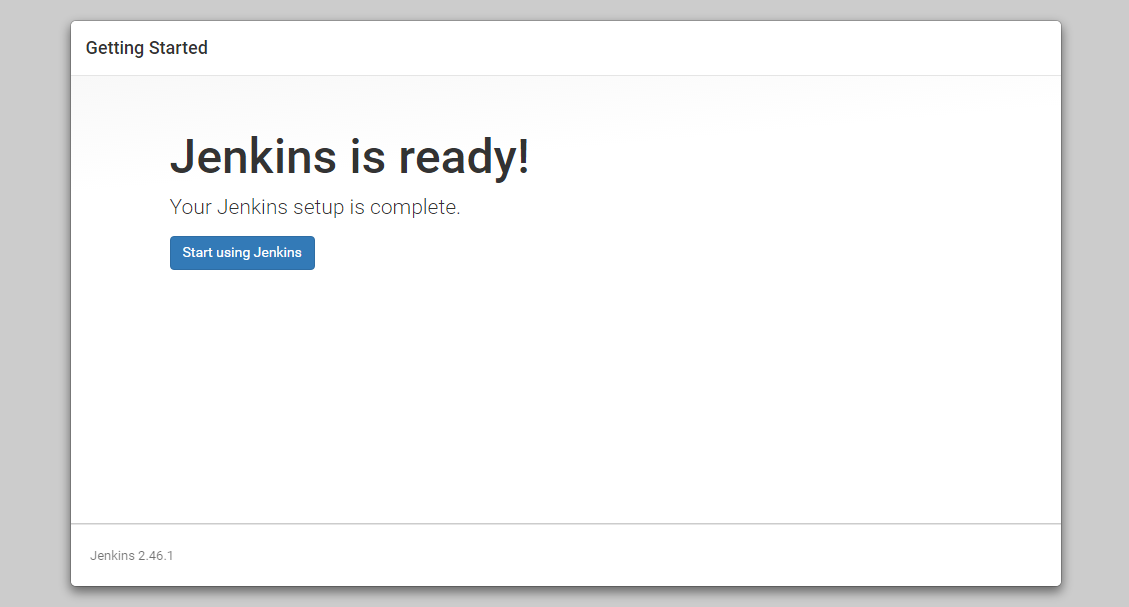
Click “Start using Jenkins” to visit the main Jenkins dashboard:
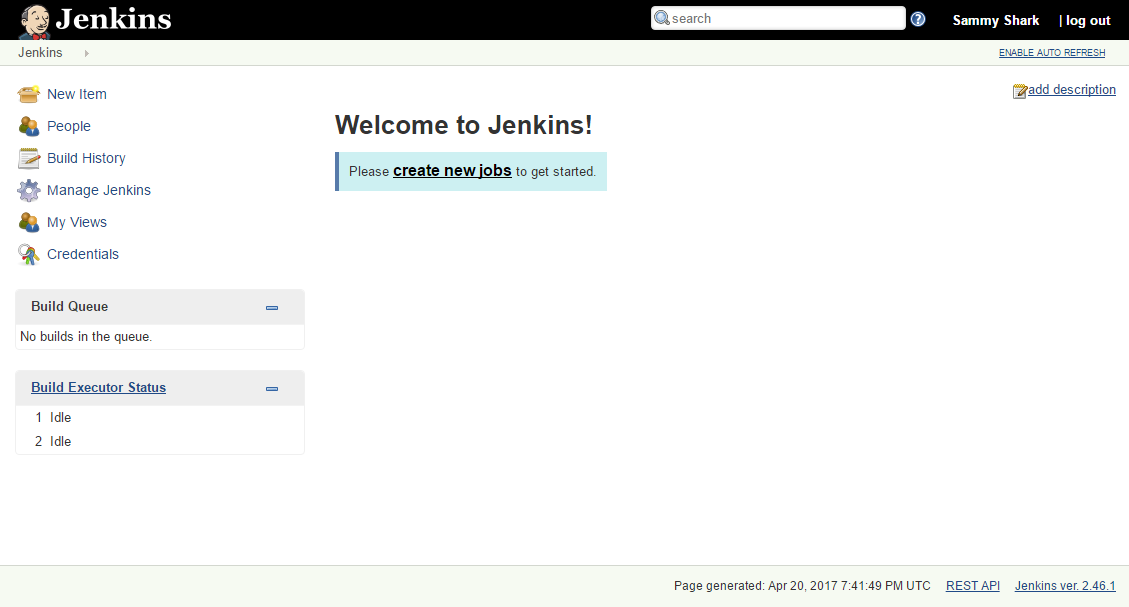
At this point, Jenkins has been successfully installed.
 test
test 